
Today’s laptops have become thinner and more compact but usually don’t feature many ports on board. A docking station offers an easy solution to access the monitor, USB devices, Ethernet, storage, and other accessories through one port.
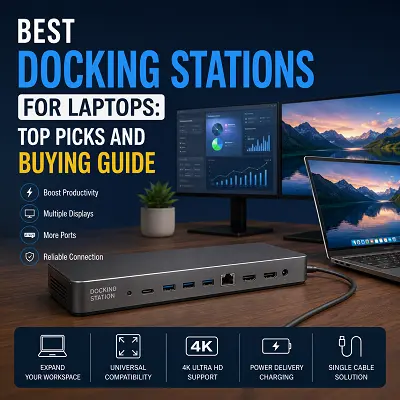
Best docking station for laptops allows you to turn your portable computer into a desktop setup without a wire mess. The choice of the docking station is to be made considering its compatibility with your laptop, screen options, ports, chargeability, and how many screens you will require.
What Is a Laptop Docking Station?
A laptop docking station is an expansion port that allows your laptop to connect to several peripheral devices through a single connection point.
- External monitor connection
- USB connections
- Ethernet
- SD and Micro SD card slots
- Audio or any other peripheral connection
- Laptop charging using the power delivery system
As compared to connecting just a single peripheral device, a docking station aims at forming a complete workstation environment.
What Does a Laptop Docking Station Do?
The use of a docking station minimizes the number of connections needed for each individual piece of hardware that may be used with the laptop.
For instance, using just one connection will give you access to the following:
- Two external monitors
- Keyboard and Mouse
- Ethernet
- USB drives
- Memory cards
- Other USB compatible devices
How Does a Laptop Docking Station Work?
Data, video and other compatible signals are sent from the laptop to the dock which then distributes them to the peripherals connected.
The general process involves:
- Connecting the dock to the appropriate port of the laptop.
- Connecting the monitors and the peripherals to the dock.
- If the dock allows for power, connecting power to it.
- Setting up the displays in the operating system.
- Utilizing the workstation that has been connected through the dock.
How to Choose the Best Docking Station for Laptops
Selecting a dock has to start with compatibility and not with the number of advertised ports.
Laptop Compatibility
Ensure:
- Model
- Operating System
- USB-C or Thunderbolt support
- USB-C video output capabilities
- Requirements of charging
- External display configuration supported
Having a USB-C shape connector does not necessarily mean that all features of a dock advertised are available.
Selection of the Correct Ports and Connections
USB-C
Helpful for connection to compatible laptops and peripheral devices.
USB-A
Helpful for keyboard, mouse, USB drive, and other older accessories.
HDMI
Helpful for connecting monitors and TV.
DisplayPort
A good choice for computer monitors when higher resolution or refresh rate is needed.
Ethernet
Helpful for getting a wired network connection which is much better than wireless in proper conditions.
SD and TF Card Readers
Useful for photographers, videographers, and other people who need to use memory cards often.
Check Monitor Support and Resolution
Prior to selecting a dock, you need to check:
- Number of displays supported
- Max resolution
- Max refresh rate
- HDMI or DisplayPort version
- GPU laptop limitations
- Compatibility with operating system
Consider 4K at 60Hz Support
If you have a 4K workstation, then support of 60Hz is a crucial specification.
Comparing to lower refresh rate, 4K 60Hz allows:
- More smooth cursor movements
- Better performance of desktop environment
- Comfortable use
- Better scrolling and windows moving experience
Power Delivery and Charging of a Dock
Not all docks provide the same charging capacity.
You should check:
- Maximum Power Delivery wattage
- Laptop charging requirements
- Method of dock’s power input
- Capability to charge a laptop when some peripheral devices are connected
Consider Ethernet Connectivity
Gigabit Ethernet may be useful for:
- Office work
- Large file transfers
- Video calls
- Storage on network
- Wired low-latency connections
Best Docking Stations for Laptops: Top Picks
The ideal dock varies based on what you need in terms of display options, laptop compatibility, charging solutions, and peripheral connections. There are different types of docks that are made to suit different workstations and having the most number of ports is not always an indication of an ideal dock.
Best Docking Stations overall
Recommendation: CalDigit TS5 Plus
CalDigit TS5 Plus is an advanced Thunderbolt 5 dock that is great for professional workstations and power users. CalDigit TS5 Plus delivers fast connectivity, numerous ports, and efficient charging features, which makes this product perfect for connecting different peripherals and monitors using only one laptop port.
Perfect for:
- Professional workstations
- Content creators
- Power users
- Windows and Mac configurations
- Fast connectivity users
Best Docking Station for Dual Monitors
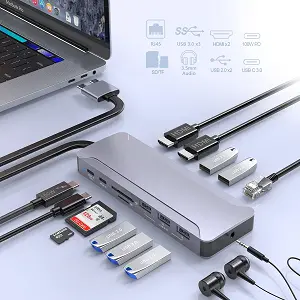
Recommended: 13-in-1 Dual Type-C to Dual Screen 4K 60Hz Docking Station
With regards to users seeking a solution for their dual-monitor setup, this docking station provides dual 4K 60Hz display support along with USB ports, gigabit ethernet, and SD/MicroSD card readers.
Key Features:
- Dual 4K 60Hz display support
- HDMI 2.0 ports
- USB ports with 5Gbps speed
- Gigabit Ethernet 1000Mbps speed
- SD and MicroSD card readers
- Aluminum alloy build quality
- 13-in-1 connectivity options
Best For:
Office work, programming, content creation, file management, and dual monitor workstations.
This product is available on the best online tech store for shoppers like Pro Tech Base online store.
Best Docking Station for Multiple Monitors
Recommended: Plugable UD-6950PDZ
DisplayLink Docking Station would suit users requiring three external monitors much more than a docking station that supports only two displays. The Plugable UD-6950PDZ supports up to three external monitors through the usage of native DisplayPort Alt Mode and DisplayLink technology.
Best for:
- Triple monitor setups
- Multitasking in the office
- Productivity settings
- Users requiring more than two external monitors
Best USB-C Docking Station for Laptops
Recommended: UGREEN 9-in-1 USB-C Revodok CM615
Revodok CM615 by UGREEN is one of the USB-C DisplayLink alternatives which can give two 4K 60Hz displays via one standard USB-C port.
Useful For:
- USB-C laptops
- Double monitor configurations in the office
- Telecommuting
- People with DisplayLink needs
Best 4K Docking Station for Laptops
Recommended: Anker Prime 14-in-1 Docking Station
The Anker Prime 14-in-1 was created with users who require high resolution display and many ports in mind. The device supports dual HDMI 4K 60Hz ports, USB ports, Ethernet port, and 100W charging.
Best for:
- Dual 4K display
- Home office
- Many connectivity work station
- Users that need to have good charging capacity too
Best Docking Station for Gaming Laptops
Recommended: Kensington SD5780T Thunderbolt 4 Dual 4K Docking Station
Gaming laptops should consider bandwidth requirements and refresh rates as well as connection types.
The Kensington SD5780T is one Thunderbolt 4 docking station that can help you connect workstations.
Here are some things you need to verify before you buy one:
- GPU power of your laptop
- Refresh rate of your monitor
- Support for Thunderbolt or USB4
- Video output needs
- Power requirements of your laptop
In terms of gaming, especially competitive gaming, you may consider connecting a high-refresh-rate monitor to your laptop directly if the dock does not have a suitable refresh rate.
Best Budget Docking Station for Laptops
Recommended: Baseus Dual Monitor 10-in-1 Docking Station
Baseus Dual Monitor 10-in-1 is a great value choice for those looking for connectivity but not willing to step up to a more expensive Thunderbolt dock.
Best for:
- Students
- Home offices
- Basic dual-monitor setup
- Users who want ports but not willing to pay extra
Best Docking Stations for Different Laptops
Different laptop manufacturers have varying combinations of USB-C, Thunderbolt, docking standards and display connections. Thus, the suitable dock for a Dell, HP, Lenovo, MacBook or Samsung laptop will vary from one to another.
Dell Laptop Docking Stations
Consider:
- USB-C or Thunderbolt
- Power needs
- Display setup
- Dell-specific docking needs
HP Laptop Docking Stations
HP laptops are capable of handling different docking stations depending on the laptop type.
Check for:
- USB-C
- Charging ability
- Display outputs
- Operating system compatibility
Lenovo Laptop Docking Stations
Lenovo devices may be compatible with either USB-C or Thunderbolt docking station, depending on the particular laptop.
Prior to purchasing the docking station, ensure that:
- The connection standard is supported
- Highest possible resolution is supported
- The power requirements
- The number of external monitors required
MacBook and Mac Laptop Docking Stations
It should be noted that MacBook requires special consideration when it comes to limitations for external displays.
Considerations include:
- Specific MacBook model
- Number of official external displays
- Needed adapters and technologies
- MacOS compatibility
- Power needs
Samsung Laptop Docking Stations
The compatibility of the Samsung laptop with docking stations varies depending on the particular model and USB-C capability.
Ensure:
- USB-C display
- Charging capacity
- Monitor requirements
- Necessary drivers
These products and other related products like best USB-C hubs for laptops, best portable monitors for laptops, best external SSDs for laptops, and best laptops for trading are available on the Pro Tech Base online tech store.
Best Docking Stations for Dual and Multiple Monitors
Use of a dual monitor setup helps extend the working screen area significantly.
Things to Check Before Buying Dual Monitors:
- Maximum number of displays
- Resolution per display
- Refresh rate
- HDMI/DisplayPort version
- Laptop GPU compatibility
- DisplayLink requirements
How to Connect Two Monitors to Laptop Docking Station
- Attach the dock to laptop-compatible port.
- Attach the first monitor to the designated video output port.
- Attach the second monitor to the second video output port.
- Power on the monitors.
- Access the display settings of the laptop.
- Choose the extended-display option in case you want two separate working areas.
How to Connect Three Monitors to Laptop Docking Station
Three monitors need a docking station that explicitly allows for such use.
Requirements:
- Three video output ports
- DisplayLink capability
- Driver compatibility
- Laptop that can work with three displays
Don’t think that the high number of ports in a laptop dock means support of three displays.
Is It Possible to Connect Multiple Monitors via Dock to Laptop?
Yes, but there are some limitations related to the dock and the laptop itself.
Limitations depend on:
- GPU
- USB-C or Thunderbolt specification
- Display protocol
- Docking chip set
- Operating system
- Maximum resolution and refresh rate
How to Set up a Laptop Docking Station
Correct setup will definitely simplify your everyday laptop usage.
How to Connect a Docking Station to a Laptop
Basic steps to perform:
- Make sure laptop and dock are compatible.
- Connect the dock to the laptop.
- Connect the external power supply if needed.
- Connect monitors and other peripherals.
- Install necessary drivers if applicable.
- Configure display settings.
How to Connect Monitors and Other Peripherals
Connect monitors to the ports supporting HDMI or DisplayPort output.
Then connect:
- Keyboard
- Mouse
- Ethernet cable
- USB storage
- SD or MicroSD cards
- Any other peripherals that can be used
Think about high-speed requirements when connecting several peripherals at once.
How to Use a Docking Station for a Laptop
After configuration, dock can stay connected to your desk setup.
Normal working process includes the following steps:
- Laptop is connected
- External monitors get turned on
- Keyboard and mouse become available
- Ethernet gets connected
- External storage becomes available
- Disconnect one laptop connection upon leaving the desk
Do Docking Stations Charge Laptops?
Sometimes docking stations can charge the compatible laptops, however, charging abilities may differ.
How Power Delivery Works
With USB Power Delivery, the devices can negotiate the right charging level.
Depending on:
- Amount of power provided by the dock
- Laptop charging needs
- Compatibility with USB-C Power Delivery
- Peripheral loading
How to Check Your Laptop’s Charging Requirements
According to the specifications of the laptop manufacturer, find:
- Necessary wattage
- USB-C charging capabilities
- Input voltage
- Recommended charger
Dock should have enough power for the needs of your laptop rather than have maximum number of ports.
Can One Docking Station Work With Two Laptops?
Yes, but the functionality is dependent upon the docking station.
Look for:
- Support for KVM
- Host computer compatibility
- Switching capabilities
- Display switching
- Peripheral switching
In case of non-KVM docks or lack of switching features, users have to switch the host computer connection themselves between laptops.
Docking Stations with KVM Support
The dock supporting KVM technology can provide for sharing of compatible peripherals and displays among two computers.
Switching Between Two Laptops
In the usual KVM setup, one can:
- Connect the two laptops to the dock.
- Connect monitors and other peripherals to the dock.
- Switch between two computers using the dock’s switching mechanism.
- Operate with the same keyboard, mouse and displays on the switched laptop.
It can be useful for the users working with two computers at the same desk.
Final Thoughts
Choosing the best docking stations for laptops depends largely on how you intend to use the laptop. Those who need a more permanent workstation should go for docking stations that offer support for displays, compatibility, Ethernet, USB ports, and charging capabilities rather than going for those that feature many ports just because.
If you require dual 4K 60Hz displays, USB ports, Gigabit Ethernet, and SD/MicroSD cards, then you may want to try out the 13-in-1 Dual Type-C to Dual Screen 4K 60Hz Docking Station. However, for those who want three monitors or specialized gaming set-ups, it will be prudent to get docks designed for this purpose.