It is convenient if you plan to convert your gameplays to live streams, recording, clips, and other types of content. In this case, you will be able to transfer both the video and audio signals to the computer via the capture device and create streams and recordings using the OBS Studio and any other compatible program. Best Gaming Capture Cards can make this process more convenient when you need reliable video and audio capture for streaming and recording.
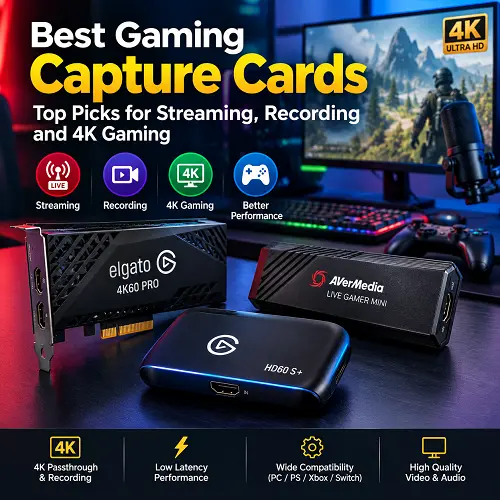
It is necessary to choose one of the devices according to your needs. For example, a beginner will only need basic 1080p capture, but a 4K player might need 4K resolution capture, HDR, and high refresh-rate pass-through.
What Is a Video Capture Card for Gaming?
The gaming video capture card will capture the video and audio from the gaming device and send it to the computer where it will be streamed or recorded. Best Gaming Capture Cards can make this process easier for different gaming and streaming setups. For instance, the console may send the HDMI output to the capture card and make the game available in OBS.
What Is a Capture Card for Gaming?
The capture card will link your gaming machine to your streaming/record computer.
Basic setup:
Gaming Device → Capture Card → Computer
If supported, HDMI passthrough can also send the gaming signal to a monitor or TV.
What Is a Gaming Capture Card Used For?
A gaming capture card is commonly used for:
- Live streaming gameplay
- Recording gaming videos
- Capturing console gameplay
- Creating YouTube content
- Using a dual-PC streaming setup
- Bringing HDMI video into OBS
- Capturing video from another external device
It gives you more control over your gaming content setup.
How Does a Gaming Capture Card Work?
A gaming capture card is a device which accepts video and audio signals from a gaming console, gaming PC, camera, or any other HDMI-based device and transmits the signal to the computer.
HDMI Input
This is where the signal gets received from your gaming device. For instance, you can plug the HDMI output from the gaming console to the gaming capture card and transmit its video and audio signal to your computer.
HDMI Passthrough
HDMI passthrough sends the gaming signal to your monitor or TV while the capture card also sends it to the computer.
This lets you play directly on your display instead of relying on the OBS preview. Some advanced capture cards support high resolutions and refresh rates through passthrough.
Gaming PC to Streaming PC
A dual-PC setup separates gaming from streaming:
Gaming PC → Capture Card → Streaming PC
The gaming PC runs the game, while the streaming PC handles OBS, recording, overlays, alerts, and other content tasks.
For creators managing multiple computers and peripherals in the same workspace, related hardware guides such as Best KVM Switches can also help when planning a more organized desktop setup.
Using OBS
OBS can recognize a compatible capture card as a Video Capture Device. After connecting it, you can select the required resolution, frame rate, and audio settings.
You can then combine gameplay with:
- Webcam
- Microphone
- Overlays
- Alerts
- Chat
- Other OBS sources
Why Do You Need a Capture Card for Gaming?
A capture card is not necessary for every gamer. A single gaming PC can often record or stream gameplay directly through software.
Hardware capture is more advantageous where capturing console, using secondary PC, or HDMI source in the setup is involved. Best Gaming Capture Cards are especially useful for these types of setups.
Do I Need a Capture Card for Gaming PC?
Normally, no, as long as it is about recording/streaming games on that PC only.
A capture card becomes useful when you want to:
- Use a dual-PC streaming setup
- Capture another computer
- Record an external HDMI source
- Build a dedicated streaming system
- Separate gaming and streaming workloads
For gamers building a complete setup, other accessories such as a Best Gaming Headset for Big Heads may also be considered separately according to comfort and personal requirements.
Do I Need a Capture Card for PC Gaming?
It depends on your setup. Software capture is usually enough for basic single-PC recording and streaming. A capture card is more useful for dual-PC workflows or external video sources.
Console Gaming
Game footage may be sent to the computer from a console using a capture card. It is useful if you require OBS functionality, webcam footage, or any other PC streaming capability.
Recording and Streaming
The capture card takes care of the video capture, while the computer and streaming application take care of the recording or streaming part.
To get the most out of your streaming and recording, your computer, USB port, video quality, and capture device must all support your preferred resolution and frame rate.
Dual-PC Setup
A dual-PC setup lets the gaming computer focus on running the game while a second computer handles streaming and recording.
The capture card transfers the gaming PC’s video signal to the streaming PC, where OBS or other software can process it.
Best Capture Cards for Gaming
Different gamers need different types of capture hardware. The best choice for a 4K console setup may not be the right choice for a beginner who only needs 1080p streaming.
Here are suitable options for different gaming needs.
Best Capture Card for Gaming — Elgato Game Capture 4K X
Elgato Game Capture 4K X is a product for users who require an advanced external capture system for gaming in modern consoles.
Elgato Game Capture 4K X employs HDMI 2.1 technology along with the high-resolution passthrough capability that includes 4K at high refresh rates. The capture functionality is extended to high frame rates at 1080p and 1440p resolution.
It can be considered an optimal option for gamers who would like to have one external device for their purposes.
Key features include:
- HDMI 2.1 input and output
- 4K passthrough
- High-refresh-rate support
- HDR10 passthrough
- VRR support
- USB-C computer connection
- High frame-rate capture options
- Support for modern gaming workflows
It is best suited to users who already have a capable gaming PC, monitor, and HDMI setup.
Best Gaming Capture Card for PC — Elgato Game Capture 4K Pro
Elgato Game Capture 4K Pro is an internal PCIe capture card targeted at strong desktop configurations.
This product is designed for use in systems equipped with latest gaming hardware and offers passthrough of high resolution, HDR10, VRR, and high frame rates. In the list of specifications provided by Elgato there are 4K passthrough up to 144Hz and 8K passthrough up to 60Hz.
For a desktop PC utilized as a streaming/capture workstation, internal cards offer a clean installation.
Why it suits PC setups:
- PCIe installation
- High-bandwidth internal connection
- Suitable for desktop computers
- High-resolution passthrough
- HDR10 support
- VRR support
- High refresh-rate support
This is more appropriate for a permanent desktop setup than for someone who regularly moves between computers.
Best Budget Gaming Capture Card — AVerMedia Live Gamer MINI GC311
The AVerMedia Live Gamer MINI GC311 emphasizes basic Full HD capture instead of high-quality 4K functionality.
Its capability is that of 1080p60 capture, HDMI input and output, and connection to the computer by Micro USB 2.0, in addition to the hardware-based H.264 encoder.
This device can be considered a good choice for those who are new to capturing and require only 1080p video streaming or capturing.
Its main strengths are:
- 1080p60 capture
- 1080p60 passthrough
- HDMI input and output
- Hardware H.264 encoding
- Compact design
- UVC connectivity
- Windows and Mac support
It capture, HDR, or high-refresh-rate gaming, so it is better suited to a straightforward Full HD setup.
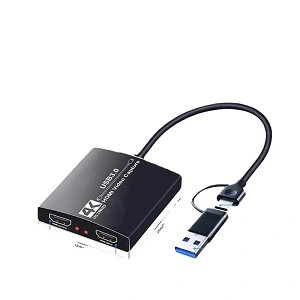
Best 4K Gaming Capture Card — 4K USB-C Video Capture Card
The 4K USB-C Video Capture Card is the ProTechBase device being discussed in this guide. This product caters to those who seek an easily portable external capture card with 4K capability.
This product specification contains information on 4K 60Hz, HDMI capture, USB-C interface, and streaming/recording capabilities. Windows 10, Xbox, Android 5.0+ and Wirecast are among its supported platforms.
USB-C interface is a convenient choice because of today’s modern computer systems. HDMI is an additional feature that lets the device operate with compatible game or video devices.
Important features include:
- 4K 60Hz support
- HDMI connectivity
- USB-C connectivity
- External design
- Streaming support
- Recording support
- Windows 10 compatibility
- Xbox compatibility
- Android 5.0+ compatibility
- Wirecast support
- MP4 and AVI recording support
For gamers who specifically want a 4K-capable external capture device without moving to an internal PCIe card, this is a practical option to consider. The product is also available through the Pro Tech Base online Tech store, where shoppers can explore other related technology products.
Best Capture Card for Console Gaming — Elgato Game Capture 4K S
Elgato Game Capture 4K S caters to contemporary console and external device recording while ensuring that the hardware remains compact and easy to transport.
It features 4K60 recording and streaming, 4K60 passthrough, 1440p120 passthrough, and 1080p240 passthrough. It also has HDR10 passthrough and VRR. The computer connection feature is based on USB-C 3.2 Gen 2.
Thus, it is well-suited for modern gamers with contemporary consoles.
Useful features include:
- 4K60 capture
- 4K60 passthrough
- 1440p120 passthrough
- 1080p240 passthrough
- HDR10 passthrough
- VRR support
- HDMI 2.0
- USB-C computer connection
- Windows, Mac, and iPad support
It is a strong choice when console gaming and portability are more important than installing an internal capture card.
Best Internal Capture Card for Gaming — AVerMedia Live Gamer 4K 2.1 GC575
The AVerMedia Live Gamer 4K 2.1 GC575 is aimed at desktop users looking for a PCIe-based solution for their gaming needs using HDMI 2.1.
The card utilizes the PCIe Gen 3 x4 connector and supports HDMI 2.1 input and passthrough. The passthrough capabilities include 4K144 HDR/VRR, 1440p240 HDR/VRR, and 1080p360 HDR/VRR according to AVerMedia, while its capture capability reaches 4K60 and can support higher 4K modes under certain software specifications.
Reasons why desktop gamers would opt for such a solution:
- PCIe Gen 3 x4 connector
- HDMI 2.1 input
- HDMI 2.1 passthrough
- Supports 4K high refresh rate
- HDR and VRR
- Passthrough up to 1440p240
- Passthrough up to 1080p360
- 1 multi-channel audio
Such kind of card works best in the powerful desktop setup.
Best External Gaming Capture Card — Elgato HD60 X
The Elgato HD60 X is a capture card intended for people who play games on consoles and PC but require USB-C support and passthrough. This device supports 4K30 capture, 1440p60 capture, and 1080p120 capture while the passthrough works with 4K60 and higher refresh rates for other resolutions.
Its external design makes it useful for:
- Console streaming
- Laptop-based setups
- Portable recording
- PC gaming capture
- High-refresh-rate gaming
- OBS workflows
It connects to the computer through USB-C 3.2 Gen 1 at 5Gbps and includes HDMI 2.0 passthrough.
What Features Should You Look for in the Best Gaming Capture Cards?
The best feature may not necessarily be the highest resolution. The capture card must correspond to the gaming hardware, monitor, computer, and type of content you intend to produce.
When comparing different options, shoppers can also use a reliable Best Online Tech Store for Shoppers to explore related gaming and computer accessories alongside capture equipment.
Resolution and Frame Rate
Resolution governs image quality while frame rate manages the smoothness of the motion.
Some examples include:
- 1080p60 for basic streaming
- 1440p for detailed gaming
- 4K60 for high-resolution content
- Higher refresh rates for competitive gaming
Make sure that you verify capture and passthrough capabilities. These can differ.
4K Capture and Passthrough
4K capture is where the computer is able to capture videos in 4K under certain settings. 4K passthrough is completely different. This is where the 4K signal can continue to go through to your monitor or television. A piece of equipment can have 4K passthrough capability without having 4K capture capability.
Low-Latency Passthrough
Passthrough is an essential feature for gamers since you will be playing on your screen while avoiding using the delayed preview that comes in your streaming software. When playing competitive games, the low-latency feature becomes even more essential.
HDR Support
The HDR feature enhances brightness, contrast, and colors in a game when the game and screen support HDR. In case you are using the HDR feature, verify whether the capture card is able to capture and/or passthrough HDR.
HDMI Connectivity
HDMI is central to most gaming capture setups.
Before buying, check:
- HDMI version
- Input resolution
- Output resolution
- Maximum refresh rate
- HDR support
- VRR support
HDMI 2.1 becomes especially important for modern 4K high-refresh-rate gaming.
USB 3.0 and USB-C Connectivity
External capture cards rely on their computer connection to transfer video. USB-C is common on newer capture hardware, but the connector alone does not tell you the available bandwidth. Check the actual USB standard and speed. For example, the Elgato 4K S uses USB-C 3.2 Gen 2, while the HD60 X uses USB-C 3.2 Gen 1 at 5Gbps.
Audio Capture and Microphone Support
Gaming content needs more than video.
Check how your capture setup handles:
- Game audio
- Microphone audio
- HDMI audio
- Party chat
- Separate audio sources
Your capture card and OBS settings should work together so your stream contains both gameplay and clear voice audio.
OBS and Streaming Software Compatibility
OBS is the most frequently used stream software when it comes to gaming streams. It is important to make sure that your operating system and capture device are compatible with the software you have chosen. Also, some companies produce their own capture/streaming software. A case in point is AVerMedia GC575, which is supported by AVerMedia Streaming Center and OBS plugin.
Internal vs External Capture Card for Gaming
The choice between internal and external hardware mainly comes down to your computer, portability needs, and how permanent you want the setup to be.
Internal Capture Cards for Gaming
Internal cards are installed inside a desktop PC through PCIe.
They are a good fit for users who:
- Have a dedicated desktop
- Want a permanent capture setup
- Have an available PCIe slot
- Use a dedicated streaming PC
- Want high-bandwidth internal connectivity
An example of PCIe Gen 3 x4 capture card intended for HDMI 2.1 gaming is AVerMedia GC575.
External Capture Cards for Gaming
External capture cards are not placed inside the computer but are connected via USB or USB-C. They are portable and can be useful to use with laptops, consoles, and multiple computers. The advantage of external equipment is that it is much more convenient for beginners who do not want to open the PC and install PCIe.
Which Capture Card is More Suitable for Your Case?
Select internal model when you have a stationary gaming computer and want to install capture equipment inside the computer. Select external model if you want to have portability, ease of installation, or capability to work with laptops. It is also important to consider the gaming resolution because requirements for a simple 1080p setup are completely different from 4K120/4K144 gaming.
Does a Capture Card Go to the Gaming PC or Streaming PC?
The answer depends on the type of setup you are constructing. For dual PC setup, the gaming computer generates a video signal, while the streaming PC captures the signal using capture card.
Capture Card in a Single-PC Gaming Setup
A capture card can be connected to the same computer when you are capturing an external source. For example, you might use one PC to capture a console, camera, or another HDMI device. For ordinary gameplay from the same PC, however, software capture may be simpler.
Capture Card in a Dual-PC Streaming Setup
A typical arrangement is:
Gaming PC → Capture Card → Streaming PC
The gaming PC focuses on running the game. The streaming PC receives the video and handles OBS, stream overlays, recording, alerts, and other content tasks.
Capture Card on Same PC as Gaming
If you are gaming and capturing on one PC, the need for a capture card depends on the source. For normal PC gameplay, software capture is usually the first option to consider. A hardware capture card becomes more useful when the video is coming from another device.
How to Set Up a Video Capture Card for Gaming
It will depend on the capture card model, but the general procedure is easy to follow.
Gaming Device to the Capture Card Connection
Connect the HDMI output of the gaming console or PC to the capture card’s HDMI input. Ensure that you have used a proper HDMI cable and connected the source to the correct HDMI input.
HDMI Passthrough to the Monitor
In case your capture card has the HDMI passthrough feature, connect the output port of the capture card to your monitor or TV. This allows you to play on the display screen while receiving the capture signal through the computer.
Capture Card to the Gaming or Streaming PC Connection
Connect the external capture card to the computer via the supported USB or USB-C connection. In case of internal capture cards, mount the card into the respective PCIe slot of the computer.
Setting up the OBS for Gaming Capture
Launch OBS and set the capture card as a Video Capture Device.
Then select the appropriate:
- Resolution
- Frame rate
- Audio source
- Video format
Avoid selecting settings that exceed what the capture device can actually capture.
Test Video, Audio and Passthrough
Before streaming, make a short test recording.
Check:
- Video quality
- Audio
- Microphone
- Passthrough
- Frame rate
- OBS preview
- Any noticeable delay
Testing before going live can save you from discovering connection problems during a stream.
Best Gaming Capture Card for PS4, Xbox and PC
PS4, Xbox, and computer gaming setups will have varying resolutions, refresh rates, and connectivity specifications. Your selection of a capture card will depend on your gaming system, the quality that needs to be captured, and additional features like 4K, HDR, and high-refresh rate passthrough. For PS4 gamers who want to personalize their setup, accessories such as Custom PS4 Controller can also be considered separately.
Best Gaming Capture Card for PS4 — AVerMedia Live Gamer MINI GC311
AVerMedia Live Gamer MINI GC311 is a good solution for PS4 users that require only a basic yet high-quality Full HD game capture.
Main features:
- 1080p60 capture: Capture your gameplay in resolution up to 1080p60.
- 1080p60 passthrough: Enjoy your gaming experience playing on your TV or monitor simultaneously with the process of game recording.
- HDMI inputs and outputs: Work with typical HDMI connections for gaming.
- 264 hardware encoder: Built for the simplicity of Full HD streaming and capturing.
- The best option for: PS4 users requiring high-quality 1080p60 capture without paying for unused 4K functionality.
Best Gaming Capture Card for Xbox — Elgato Game Capture 4K S
The Elgato Game Capture 4K S is a better choice for Xbox owners that require 4K capture and high refresh passthrough. It will work well for modern gaming configurations that require display quality to be preserved.
Features:
- 4K60 capture: 4K60 capture of the gameplay.
- 4K60 passthrough: Passthrough of 4K60 gameplay on the display.
- High refresh passthrough: 1440p120 and 1080p240 passthrough.
- HDR10 passthrough: Helps in preserving the gaming visuals of HDR10.
- VRR compatibility: Compatible with variable refresh rate.
- Suitable for: Xbox owners requiring 4K capture and high refresh gaming.
Best Gaming Capture Card for PC — Elgato Game Capture 4K Pro
The Elgato Game Capture 4K Pro is made for desktop users who want an internal capturing system. This card is built using the PCIe technology making it well suited for a gaming computer or any desktop computer.
Features include:
- Pass-through technology: Built-in pass-through system suitable for a gaming setup that requires high resolution.
- Desktop-friendly: Well-suited for use in desktop computers rather than laptops.
- Supports HDR10: Suitable for use in setups that require HDR10 pass-through.
- VRR-compatible: Suitable for use in variable refresh rate games.
- Designed for: PC users who want to use an internal card in their setup.
Common Gaming Capture Card Problems
Most capture problems come from connections, unsupported settings, software configuration, or bandwidth limitations.
Capture Card Showing a Black Screen
A black screen can happen because of:
- Incorrect HDMI connection
- Unsupported resolution
- Incorrect OBS source
- HDMI handshake problems
- Cable problems
- HDCP restrictions
Start by checking the source, HDMI cables, and selected resolution.
Audio Not Coming Out of the Capture Card
If the picture works but the audio does not, check the audio settings in OBS and on the gaming device.
Also check whether the HDMI connection is carrying audio correctly.
Capture Card Lag on Gaming PC
If you play through the OBS preview, you may notice delay.
When available, HDMI passthrough allows you to play directly through the monitor or TV while the computer handles the captured feed separately.
USB Bandwidth and Connection Problems
High-resolution video can require substantial bandwidth.
If the capture device disconnects or the video becomes unstable, check:
- USB port
- USB cable
- USB standard
- Available bandwidth
- Other devices connected to the same hub
A direct connection to the computer can also make troubleshooting easier.
HDMI and Passthrough Issues
Passthrough problems can happen when the source, capture card, and display do not agree on resolution, refresh rate, HDR, or another video feature. Try lowering the source settings temporarily to determine which setting is causing the problem.
Frequently Asked Questions About Gaming Capture Cards
What Is a Capture Card for Gaming?
It is a hardware device that takes video and audio signals from a gaming system and sends those signals to the computer for recording, streaming, and creating content.
Do I Need a Capture Card for PC Gaming?
No. PC gaming alone can be recorded and streamed with software programs. In the case of dual systems or an external HDMI source, a capture card will be useful.
What Are the Best Gaming Capture Cards?
The Best Gaming Capture Cards offer the right resolution, refresh rate, connectivity, and passthrough for your gaming and streaming setup.
Does a Capture Card Go in the Gaming PC or Streaming PC?
Generally, in a dual-PC configuration, the gaming PC provides the video output to the capture card which sends those outputs to the streaming PC for OBS software or others.
What Is the Best Capture Card for Gaming?
There is not a fixed answer to this question since different games have different needs. Resolution, frame rates, HDMI versions, pass-throughs, USB vs PCIe, and gaming platform compatibility should be considered.
Can a Capture Card Record 4K Gaming?
Yes, there are some capture cards capable of recording 4K videos. Remember that 4K passthrough and 4K capture are two different things.
Does a Capture Card Cause Input Lag?
Capture preview may experience some lag. A proper passthrough link allows you to play directly on your monitor/TV instead of using the software preview.
Can I Use Capture Cards With a Gaming Laptop?
Yes, external capture cards can be used with laptops. Verify laptop’s USB ports, bandwidth, OS, and the requirements of the capture card before purchasing.
Final Thoughts
A good gaming capture solution should be easy to record from and stream, rather than complicated to deal with. Best Gaming Capture Cards can come in handy in ensuring the simplicity of this process through the selection of the most appropriate gadget. What is very important is to ensure that the capturing device is compatible with the gaming console, monitor, and computer.
If you are in search of an external 4K capture device, then the 4K USB-C Video Capture Card – 4K 60Hz HDMI Capture Device is the perfect choice due to its compatibility with 4K60, HDMI, USB-C, and streaming and recording. For advanced applications, PCIe internal devices and HDMI 2.1 solutions offer higher bandwidth and refresh rates.
When shopping for the perfect device, take into account all the factors such as the resolution of capture, the passthrough resolution, the frame rate, the HDMI version, the connection type, audio, and software. This is the easiest way to find a capture solution that fits your needs. You can also visit the Pro Tech Base online store to explore additional technology products and related accessories for your gaming setup.