With the use of two or more computers on the same table, switching keyboards, mouses, and screens will complicate your space very quickly. Best KVM Switches can provide an easy solution, as a KVM switch is an easy solution to controlling several computers through one set of peripheral devices. According to the type of switch, you may have one or several screens and be able to switch between computers through a key, hot key, remote, etc.
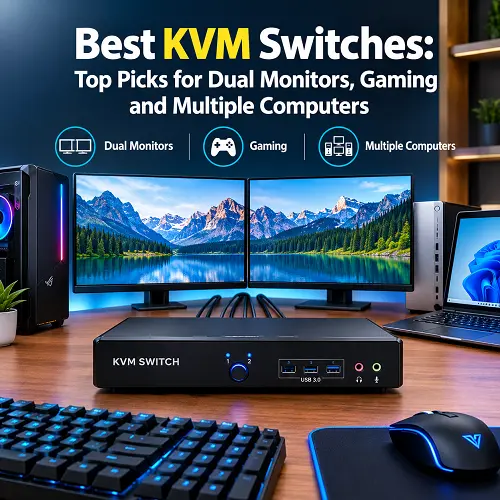
KVM configurations are helpful in a number of cases – home office, gaming station, workstations, or a frequent change between laptops and a desktop computer. KVM can also help in reducing clutter on your desk because it is possible to operate several computers with the same keyboard, mouse, and screen equipment.
What Is a KVM Switch?
The KVM means Keyboard, Video and Mouse. The KVM switch helps you to manage several computers via one set of keyboard, mouse, and monitor.
Instead of connecting separate peripheral devices to each computer, you may use them for the KVM.
- Supports two or more computers, depending on the model
- Can support single or multiple monitors
- Ideal for use in home office, gaming, and workstation setup
- Some types offer features such as 4K, high refresh rates, and USB devices
KVM Switch Usage
- For home office: Sharing peripheral devices between work and personal computer.
- For workstations: Managing different systems through one desk station.
- For Gaming: Switching between gaming PC and other computer.
- Laptop and Desktop: Use same display and input devices.
- Professional Use: Managing multiple computers easily.
What Devices Can Be Used With KVM Switch?
- Keyboard and mouse
- Monitor or multiple monitors
- Desktop computers
- Laptops
- USB flash drives
- Webcams
- USB microphones
- Other USB peripherals
Always check the available HDMI, DisplayPort, USB-C, or VGA ports before choosing a model.
How Does a KVM Switch Work?
A KVM switch connects multiple computers to the same keyboard, mouse, and monitor. It switches the active computer when you select another system.
- Connect computers to the KVM using video and USB cables.
- Connect the monitor and keyboard/mouse to the KVM.
- Select the computer you want to control.
- The KVM sends keyboard and mouse input to the selected computer.
- The selected computer’s video appears on the monitor.
Switching can usually be done through:
- Physical button
- Wired remote
- Keyboard hotkeys
- Included controller
How Do KVM Devices Work?
The KVM controls which connected computer receives your input and sends its video signal to the display. Advanced models can also switch additional USB devices. Before buying, check resolution, refresh rate, video ports, USB ports, and cable compatibility to ensure everything works with your setup.
How to Set Up a KVM Device
Setting up a KVM device is usually simple:
- Connect your monitor or monitors to the KVM.
- Connect the keyboard and mouse to the USB ports.
- Connect your computers to the KVM’s video and USB inputs.
- Connect any additional USB peripherals.
- Turn on the computers and monitor.
- Use the button, remote, or hotkey to select a computer.
- Check that the display, keyboard, and mouse work correctly.
How to Connect a KVM Device to Two Computers
- Connect each computer to a separate KVM input.
- Connect the monitor, keyboard, and mouse to the KVM.
- Use the switch button, remote, or hotkey to change computers.
- Make sure the KVM supports your monitor’s resolution and refresh rate.
How to Set Up a KVM Device With Dual Monitors
For two monitors, use a KVM designed for dual-display setups.
- Connect both monitors to the KVM.
- Connect the required HDMI or DisplayPort cables from each computer.
- Check that the KVM has enough video inputs and outputs.
- Confirm support for your required resolution and refresh rate.
- For 4K, check specifically whether it supports 4K at 60Hz on both monitors.
Best KVM Switches: Top Picks
The choice of the most suitable KVM device will depend on the number of devices you wish to connect and your intended use. A KVM setup for two computers is not the same one that will work well for connecting four computers, and an office KVM is not the same one that will be useful for gaming.
The following are examples of Best KVM Switches for various purposes.
Best Online Tech Store for Shoppers can also be useful when comparing compatible technology products and accessories for your setup.
Best KVM Switch— Level1Techs HDMI 2.1 KVM
If you are looking for the best KVM switch, focus on a model that combines strong video performance, reliable switching, and broad compatibility. An overall choice should work well for everyday productivity while also providing enough bandwidth for demanding displays.
The Level1Techs HDMI 2.1 KVM is a premium option for users who want advanced HDMI performance and high-resolution display support. Current comparisons position it as a high-end choice for demanding 4K high-refresh setups.
What to Look For in the Best Overall KVM
- Reliable switching between computers
- High-bandwidth HDMI connectivity
- Support for high-resolution displays
- USB support for keyboard and mouse
- Compatibility with your monitor and computer
Who Should Choose It?
- Users with demanding displays
- Home-office workstations
- Gaming and productivity setups
- Users who want a premium KVM
Best KVM Device for Two Computers — ATEN CS1822
One computer to another computer KVM device is considered to be one of the most frequently used combinations. This kind of combination allows keeping two computers connected and switching between them without having separate keyboards and mouses.
The ATEN CS1822 will be an appropriate choice for those who are going to use a two computer KVM device that supports 4K displays.
Why Use a 2-Port KVM Device?
- Connect two computers
- Share one keyboard and mouse
- Switch between work and personal systems
- Avoid repeatedly changing cables
What to Check
- Number of computer inputs
- Monitor support
- Resolution
- Refresh rate
- USB connectivity
- Switching method
Who Should Choose It?
- Home-office users
- Work and personal computer users
- Two-PC workstations
- Basic productivity setups
Best KVM Device for Mac and PC — ATEN CS1942DP
KVM device for Mac and PC can come in handy when you need to work with both platforms at once but don’t want to use different keyboards, mice and monitors.
ATEN CS1942DP is a solution based on DisplayPort technology for people who have to share input devices for their compatible Mac and Windows PCs. It is also designed for dual-display environments.
What to Check for Mac and PC
- macOS compatibility
- Windows compatibility
- DisplayPort or other required video connections
- USB peripheral support
- Monitor resolution
- Required adapters
Why It Is Useful
Instead of maintaining separate desk setups, one KVM can allow you to move between the Mac and PC while keeping your main peripherals connected.
Who Should Choose It?
- Mac and Windows users
- Designers and developers
- Mixed-OS workstations
- Home-office users
Best KVM Device for Laptop and Desktop — TESmart HDC202-X24
A KVM device that can be used for both laptop and desktop PC comes in handy when a user has his/her laptop for work as well as a desktop PC sitting next to it. This allows the two computers to utilize the common compatible monitor and peripheral components.
TESmart HDC202-X24 switch is designed for users who have compatible Thunderbolt-based systems. However, compatibility should be checked carefully because Thunderbolt support is important for this type of setup.
For users comparing related laptop connectivity solutions, Best Docking Stations for Laptops can also be useful.
What to Check for Laptop + Desktop
- USB-C or Thunderbolt compatibility
- HDMI or DisplayPort requirements
- Number of monitors
- USB connectivity
- Power-delivery requirements
Why Use This Setup?
- Keep one keyboard and mouse
- Share your main monitor setup
- Switch between work and desktop systems
- Reduce cable changes
Who Should Choose It?
- Remote workers
- Laptop users with desktop PCs
- Home-office users
- Advanced USB-C or Thunderbolt setups
Best USB KVM Device — UGREEN USB KVM Switch 2-Port
USB KVM device will be a good choice for someone that needs to share only a keyboard, mouse, USB pen drive or webcam with another computer. The difference between the KVM device and USB KVM device is that the USB KVM device may not control the video output.
UGREEN USB KVM Switch 2 Port will be a good choice for someone that controls the monitors separately.
For users who need additional laptop connectivity, Best USB-C Hubs for Laptops can be another useful option.
Why Choose a USB KVM?
- Share keyboard and mouse
- Switch USB accessories between computers
- Keep the monitor connection separate
- Useful for simple desk setups
Who Should Choose It?
- Users with monitors that already have multiple inputs
- Home-office users
- Users who only need USB switching
- Simple two-computer setups
Best HDMI KVM Device — UGREEN HDMI KVM 4K@60Hz
HDMI KVM device is ideal for computers and monitors using HDMI connections. Before purchasing, ensure that the HDMI version suits your computer’s requirements.
For users who require an entry-level HDMI KVM device with 4K@60Hz capability, the UGREEN HDMI KVM 4K@60Hz KVM Switch would be ideal for them because it is ideal for productive work and not for high-refresh rate gaming.
What to Check in an HDMI KVM
- HDMI version
- Maximum resolution
- 60Hz or higher refresh-rate support
- USB keyboard and mouse support
- Number of computers
- Cable requirements
Who Should Choose It?
- Office users
- Home-office setups
- HDMI monitor users
- 4K 60Hz productivity setups
Best 4K KVM Device — StarTech SV211DPUA4K
4K KVM devices are made to serve those customers who want high display resolution while sharing peripheral devices with computers. But simply seeing “4K” in a product name is not sufficient. It is recommended to ensure that the unit has a capacity for 4K @60Hz.
StarTech SV211DPUA4K is the right product for dual computer connection using DisplayPort in case of 4K @60Hz need.
What to Check for 4K
- 4K resolution support
- 60Hz refresh rate
- DisplayPort or HDMI compatibility
- USB support
- Cable bandwidth
- Support for your graphics hardware
Who Should Choose It?
- 4K monitor users
- Office professionals
- Content creators
- High-resolution productivity setups
KVM Device for Dual Monitors
A dual monitor KVM device is meant for people who would like two computers to use two displays and one keyboard and mouse. This is helpful because the user can be multitasking and will benefit from having both screens available as he works on one of the computers.
A dual monitor KVM device should have enough video ports to accommodate both displays. The ports should be either HDMI or Display Port, depending on which ones are present on the computers and the monitors.
If you choose a dual monitor KVM device, ensure that there are high enough resolution and refresh rates for all outputs. The KVM device for two monitors should also have enough USB ports for your accessories.
Best Dual Monitor KVM Device — SYONG 2×2 HDMI KVM Switch
When looking for a solution that would allow connecting two computers to two HDMI monitors, the SYONG 2×2 HDMI KVM Switch may be a good option for such a configuration.
The 2×2 configuration of this switch corresponds to the needs of those users who require two computers to be linked to two monitors simultaneously using the same keyboard and mouse.
Who Should Choose It?
- Users with two computers
- Dual HDMI monitor setups
- Home-office users
- Multitasking workstations
- Users who want to avoid manual cable switching
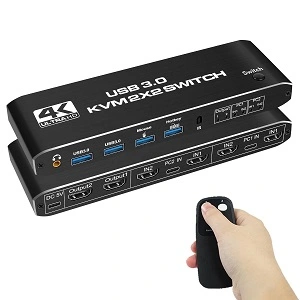
Dual Monitor KVM Device for High Refresh Rates — TESmart DKS202-M24
For gaming or other demanding display setups, the TESmart DKS202-M24 is a better fit when high refresh rates are a priority. This is engineered on the basis of a dual-monitor DisplayPort system and comes with a listing intended for high-refresh dual display. Prior to purchase, ensure that your graphics cards, monitors, and DisplayPort cables have the capability of supporting the resolution and refresh rate you wish to use. If your monitors are gaming monitors, consider refresh rate too.
For demanding setups, verify:
- 144Hz support
- 4K 60Hz support where required
- HDMI or DisplayPort bandwidth
- Support for both monitors simultaneously
- Compatibility with your graphics card
KVM Device for Multiple Computers
KVM multi-computer setups can be handy if there are numerous computers at one desk. The two most popular types are the two-port and the four-port type. KVM for two computers will be sufficient for any household needs, whereas a 2-port setup will keep the system quite simple. A 2 port KVM device is ideal when you only need two systems. If you need to control more machines a 4 port KVM device can provide four separate computer connections without repeatedly changing cables. Best KVM Switches can be useful for these multi-computer setups.
Best 2-Port KVM Device — TRENDnet 2-Port KVM Switch
- The TRENDnet 2-Port KVM Switch would be ideal for someone who only requires control of two computers through a single space.
- It would be great for a work computer and a personal computer or two desktop computers that share the same keyboard, mouse, and monitor.
- With the use of a two-port switch, there will be fewer complications compared to using a four-port switch.
Best 4-Port KVM Device — CKL 642DP
- The CKL 642DP will be ideal for users who require managing a number of computers from one desk.
- The device comes in a four-port configuration which means that it will be capable of handling up to four computer systems.
- It will be ideal for users who need dual DisplayPort screens on multiple computers.
- A four-port model provides additional flexibility, but it also normally requires more cables and a larger workspace for the connections.
KVM Device for Gaming
KVM devices for games could be helpful if the gaming PC is used together with another computer by sharing their input devices. Rather than switching cables, one will be able to change computers using the same mouse, keyboard, and display device.
Video output quality is important for gamers. The KVM device game setup should match your gaming monitor resolution and refresh rate.
If the display device operates at 144Hz, choose a high enough bandwidth. The KVM DisplayPort 144Hz configuration could be helpful for gaming PCs which use DisplayPort.
Best KVM Device for Gaming — TESmart T2410
The TESmart T2410 is a better match for the gaming section because it is designed around DisplayPort 1.4 and high-refresh gaming setups. Support of 4K with up to 144Hz and EDID is stated in the current specifications of the product, which makes it more suitable for people concerned with high refresh rates and stability.
It can be handy for a gaming PC which works together with another computer on the same desk, especially if it supports a high refresh rate.
What Gamers Should Check
- DisplayPort or HDMI bandwidth
- 144Hz or higher refresh-rate support
- Required resolution
- GPU compatibility
- Stable switching
- USB support for gaming peripherals
Pros and Cons of Using a KVM Device
Advantages of a KVM Device
- Keeps the desk cleaner
- Shares one keyboard and mouse
- Makes switching between computers easier
- Reduces the need for duplicate peripherals
- Works well for multi-computer workstations
Disadvantages of a KVM Device
- Requires additional cables
- Some models have compatibility limitations
- Advanced features can increase the cost
- Resolution and refresh rate may be limited
- Setup can become complicated with several monitors
Frequently Asked Questions About KVM Devices
What Is a KVM Device?
A KVM device is a switch or connection box that permits sharing of a keyboard, mouse, and screen among different computers. The computers are linked to the KVM device, whereas the keyboard, mouse, and monitor are linked to the common ports of the switch. By switching, the particular computer gets the link to the input and video.
Can a KVM Device Work With Two Monitors?
Yes. There are KVM devices specially made for two monitors. You have to ensure that the KVM device has enough video connections for the two monitors.
Can I Use a KVM Device With Two Computers?
Yes. There is a two-port KVM device that is specially made for two computers.
Can I Use a KVM Device With a Laptop and Desktop Computer?
Yes. It works fine with both types of computers if the KVM device has the video and USB connection support of both laptops and desktops.
Can a KVM Device Work With Two Monitors?
Yes. There are KVM devices specially made for two monitors. Best KVM Switches can be useful for these dual-monitor setups. You have to ensure that the KVM device has enough video connections for the two monitors.
Can I Use a USB KVM Device for Gaming?
Indeed, although you need to verify the video capabilities independently from the USB support. USB connection provides peripheral devices support, whereas gaming is dependent on the video capabilities, resolution, and refresh rate of the KVM.
Does KVM Device Support 4K 60Hz?
Some KVM devices have 4K support, but not all of them provide 60Hz refresh rate. It is vital to check technical specifications to see if the device supports 4K with 60Hz.
Will a KVM Device Work for PC and Mac?
Many models will work with both operating systems since they depend only on video support and USB.
What’s the Difference Between KVM Device and USB Switch?
The USB switch usually allows sharing of USB peripherals between computers without providing video support. The KVM device shares keyboard, monitor, and mouse between connected computers.
Which KVM Device Should You Buy?
The best choice will depend on your hardware and working style.
- Best all-around: Go with a reliable model and one that will fit your ports and video capabilities.
- Best for dual monitors: The SYONG 2×2 HDMI KVM Switch is a great option for someone setting up a two-computer, two-monitor HDMI system.
- Best for gaming: Select a high-refresh rate model like the TESmart T2410 if your gaming monitor needs higher DisplayPort bandwidth.
- Best for multi-computers: A 4-port model will be better for you if you frequently handle multiple computers.
- Best for Mac and PC: Pick a KVM device that works well with both operating systems and your video ports.
- Best for laptop and desktop: A USB-C or Thunderbolt-compatible model can help make the transition between them smoother.
- Best for 4K: Go with a model that will support your specific 4K requirements.
Pro Tech Base online store can also be used to explore related technology products and accessories when building a complete desk setup.
Final Thoughts
KVM device allows simplification of the whole setup because it enables the use of one keyboard, mouse, and monitor by multiple computers. This depends on the number of computers used and the types of connection needed. Some of the factors to consider include the resolution and refresh rates that will be supported, the video and USB port capabilities, and switching methods.
In case there are two monitors in use, ensure that the device is compatible with both of them at your specified levels. Best KVM Switches can help when choosing a suitable device for these requirements. Pro Tech Base online tech store can be another place to explore technology products when choosing compatible accessories for your computer setup.